
Download xpadneo — Xbox Controller Driver for Linux
Connect your Xbox One, Series X|S, or Elite 2 wireless controller to Linux over Bluetooth. Full rumble, trigger feedback, and battery reporting built in.
What Is xpadneo?
A DKMS kernel module that makes Xbox wireless controllers work properly on Linux over Bluetooth.
xpadneo is an open-source Linux kernel driver built specifically for Xbox wireless controllers. It started as a student project at fortiss GmbH (a research institute connected to the Technical University of Munich) and has since grown into the go-to solution for anyone who wants to use an Xbox One, Xbox Series X|S, or Xbox Elite 2 controller on Linux via Bluetooth.
The default Linux kernel includes a basic Xbox controller driver called xpad, but it only handles wired and USB dongle connections. If you want to pair your controller wirelessly over Bluetooth, you need xpadneo. It installs as a DKMS module, which means it rebuilds automatically whenever you update your kernel – no manual reinstallation after system updates.
What sets xpadneo apart from other solutions is its trigger force feedback. On most platforms (Windows included), the triggers just report analog pressure. With xpadneo, games and applications can make the triggers vibrate with pressure-dependent intensity. It also handles battery reporting, correct button mapping across different controller revisions, and paddle support on the Elite Series 2.
The project is maintained by Kai Krakow on GitHub, where it has collected over 2,600 stars. It works on any Linux distribution with kernel 4.18 or newer, and packages are available through the AUR, Fedora Copr, and openSUSE Build Service. Beyond Xbox controllers, xpadneo also supports several third-party controllers from 8BitDo, GuliKit, and GameSir.
Wireless Bluetooth pairing
Connect Xbox One, Series X|S, and Elite 2 controllers over Bluetooth without a USB dongle. Supports both classic BT and BLE protocols.
Trigger force feedback
Pressure-dependent vibration on both triggers – a feature that most platforms, including Windows, do not support natively.
Battery level reporting
Check your controller’s battery status directly from Linux, including the Play and Charge Kit. No more guessing when it will die mid-session.
DKMS auto-rebuild
Installs as a DKMS module. When your kernel updates, the driver recompiles automatically. No manual steps after system upgrades.
Ready to set up your Xbox controller on Linux? Check the getting started guide or grab the latest release.
What Makes xpadneo Different
A purpose-built DKMS kernel module that fills the gaps left by the default xpad driver. Here is what you get out of the box.
Ready to set up your controller? Jump to the Getting Started guide or download xpadneo now.
System Requirements
Check that your Linux setup meets these specs before installing the xpadneo driver.
| Component | Minimum | Recommended |
|---|---|---|
| Operating System | Any Linux distribution with kernel 4.18 or newer | Ubuntu 22.04+, Fedora 38+, Arch (rolling), or Manjaro Latest LTS |
| Linux Kernel | 4.18 | 5.15+ or 6.x for full BLE and Series X|S support 6.x |
| Bluetooth Stack | BlueZ 5.50+ | BlueZ 5.66+ with BLE support enabled |
| DKMS | dkms 2.8+ and matching linux-headers package | dkms 3.0+ with auto-rebuild on kernel updates |
| Kernel Module | UHID module loaded (most distros include this by default) | UHID and hid-generic modules present in running kernel |
| RAM | 512 MB (kernel module uses minimal memory) | 2 GB+ for a comfortable gaming session alongside the game itself |
| Disk Space | ~50 KB for the module plus ~20 MB for DKMS build files | 100 MB free to allow room for kernel headers and build cache |
| Build Tools | git, make, gcc (required for DKMS compilation) | Full build-essential or base-devel meta-package |
| Controller | Xbox One S, Series X|S, or Elite 2 with Bluetooth | Xbox Series X|S controller (model 1914) for best BLE latency |
| Bluetooth Adapter | Any USB Bluetooth 4.0 adapter supported by BlueZ | Bluetooth 5.0+ adapter (Intel AX200/AX210, Qualcomm) for lower latency |
xpadneo is a lightweight DKMS kernel module that compiles against your running kernel. No proprietary dependencies or closed-source blobs required. See the Getting Started section for full installation instructions.
Download xpadneo
Get the latest release from GitHub or install through your distro’s package manager. The driver builds automatically via DKMS on your system.
xpadneo for Linux
DKMS kernel module — builds on any distro with kernel 4.18+
$ git clone https://github.com/atar-axis/xpadneo.git

$ cd xpadneo && sudo ./install.sh
AUR Package
xpadneo-dkms for Arch Linux and Manjaro
GitHub Repository
Source code, issues, and documentation
All Releases
Previous versions and changelogs
Requires DKMS, linux-headers, and BlueZ. See system requirements for details.
Screenshots
See xpadneo in action – from joystick calibration to controller pairing on Linux desktops.
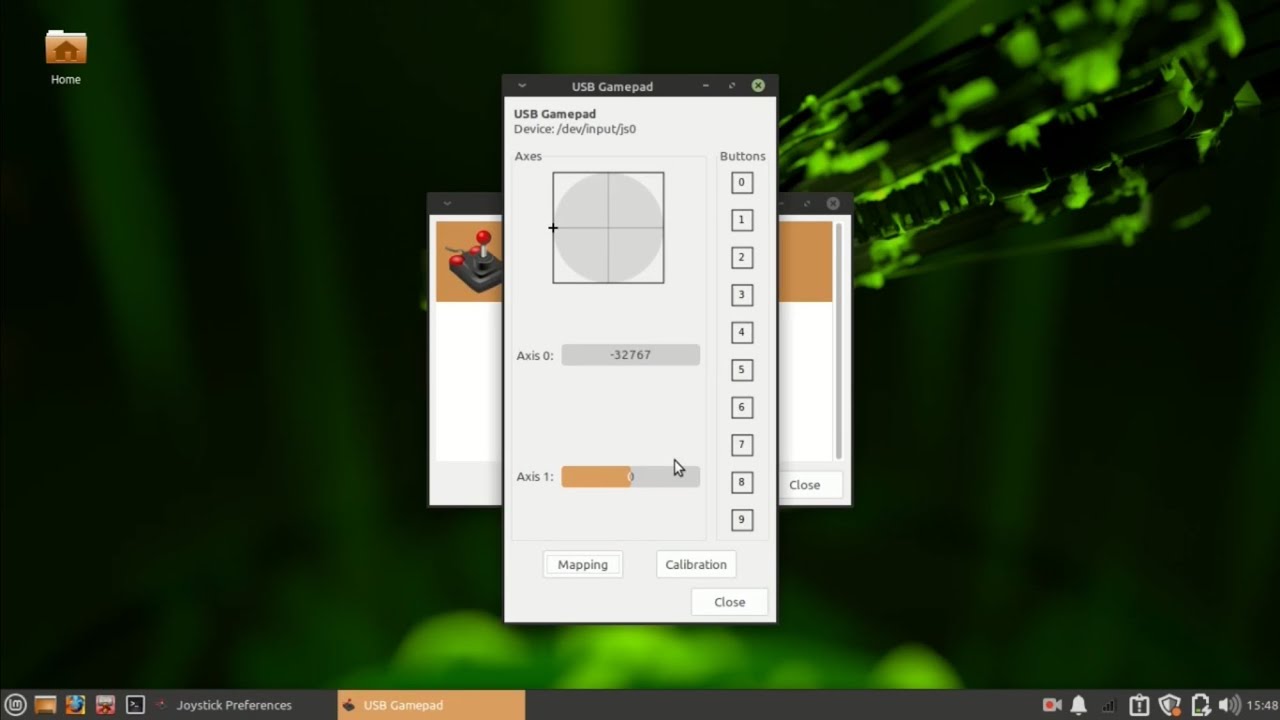


Images sourced from the xpadneo community and YouTube tutorials.
Getting Started with xpadneo
From download to your first gaming session — here is everything you need to get your Xbox controller working on Linux with xpadneo.
Downloading xpadneo
Head to our download section above to grab xpadneo v0.9.8. The driver is a DKMS kernel module weighing roughly 50 KB — a tiny download that finishes in under a second on most connections. You will not find a traditional .exe or .msi installer here. xpadneo lives as a Git repository, and the recommended approach is cloning it directly from the source.
You have two paths to choose from. The git clone method works on every Linux distribution and always gives you the latest code. This is the best option for beginners because the included install script handles everything automatically. Your other option is a package manager install through your distro’s repositories — Arch users can grab xpadneo-dkms from the AUR, Fedora users can enable the Copr repository, and openSUSE users can pull it from the Build Service.
If you plan to test pre-release features, the master branch on GitHub contains the latest development code. For most people, the stable v0.9.8 release is the right pick. There is no beta channel or separate download — just the main repository and tagged releases.
git pull and sudo ./update.sh from the same folder. No need to re-download anything.
Installation Walkthrough
Before running the installer, you need three dependencies: DKMS (Dynamic Kernel Module Support), your distribution’s linux-headers package, and BlueZ (the Linux Bluetooth stack). The exact package names differ by distro. Here is a quick reference:
| Distribution | Install Command |
|---|---|
| Ubuntu / Debian / Mint | sudo apt-get install dkms linux-headers-$(uname -r) bluez |
| Fedora | sudo dnf install dkms make bluez bluez-tools kernel-devel-$(uname -r) kernel-headers |
| Arch / Manjaro | sudo pacman -S dkms linux-headers bluez bluez-utils |
| openSUSE | sudo zypper install dkms make bluez kernel-devel kernel-source |
With dependencies in place, the installation is three commands and a reboot:
# Clone the repository

$ git clone https://github.com/atar-axis/xpadneo.git


# Run the installer

$ cd xpadneo

$ sudo ./install.sh


# Reboot to load the new module

$ sudo reboot
The install.sh script registers xpadneo with DKMS, which means the driver automatically rebuilds whenever your kernel updates. You will see output confirming “DKMS: install completed” when it finishes. No manual module loading or kernel recompilation needed.
Fedora Copr alternative: If you prefer package manager integration on Fedora, you can skip the git method entirely:
$ sudo dnf copr enable atim/xpadneo

$ sudo dnf install xpadneo

$ sudo reboot
uname -r. Also verify UHID support is enabled: zgrep UHID /proc/config.gz should return CONFIG_UHID=y or =m. Most modern distros include this by default.
Arch Linux users can install from the AUR instead: yay -S xpadneo-dkms or use your preferred AUR helper. The AUR package tracks stable releases and handles DKMS registration automatically.
Initial Setup and Configuration
After rebooting, xpadneo is loaded and ready. There is no first-run wizard or GUI to walk through — the driver works immediately with sensible defaults. But you should know about the configuration options available to you.
The fastest way to adjust settings is the included configure.sh script. Run it from the xpadneo directory:
$ cd xpadneo

$ sudo ./configure.sh
This opens an interactive menu where you can tweak rumble intensity, trigger feedback behavior, and deadzone settings. Here are the key parameters you should know about:
- trigger_rumble_mode — Controls trigger vibration. Set to
0for pressure-based feedback (default, unique to xpadneo and not available on Windows),1for direction-based, or2to disable trigger rumble entirely. - rumble_attenuation — Scale from
0(full rumble) to100(silent). You can set main motors and triggers separately with comma notation, like0,100for full body rumble but no trigger vibration. - disable_deadzones — Set to
1for raw analog input without any deadzone filtering. Useful for Wine/Proton games that apply their own deadzones. Keep at0(default) for native Linux games and general use. - ff_connect_notify — Set to
1to get a short rumble pulse when your controller connects. Handy confirmation that everything is working.
For permanent settings that survive reboots, create a modprobe configuration file:
$ echo 'options hid_xpadneo trigger_rumble_mode=0 rumble_attenuation=0 ff_connect_notify=1'

    | sudo tee /etc/modprobe.d/99-xpadneo-options.conf
xpad driver or Steam Input, xpadneo replaces them for Bluetooth connections. USB connections still use the standard kernel xpad driver. No migration or conflict resolution is needed — xpadneo only handles Bluetooth-connected controllers.
Pairing Your Controller and Playing
With xpadneo installed, it is time to connect your Xbox controller over Bluetooth. Grab your controller and follow these steps:
- Put your controller in pairing mode: Press and hold the small connect button on top of the controller (next to the USB port) until the Xbox logo starts flashing rapidly. On Series X|S controllers, the logo blinks fast when ready to pair.
- Open bluetoothctl: Launch a terminal and start the Bluetooth control tool.
- Scan, pair, and trust: Run the commands below to find and connect your controller.
$ sudo bluetoothctl

[bluetooth]# scan on

# Wait for your controller to appear

[NEW] Device C8:3F:26:XX:XX:XX Xbox Wireless Controller


[bluetooth]# scan off

[bluetooth]# pair C8:3F:26:XX:XX:XX

[bluetooth]# trust C8:3F:26:XX:XX:XX

[bluetooth]# connect C8:3F:26:XX:XX:XX

Connection successful

[bluetooth]# exit
Replace C8:3F:26:XX:XX:XX with the actual MAC address that appears during scanning. A short rumble confirms a successful connection. The trust command is important — it tells BlueZ to auto-reconnect this controller in the future, so you only need to do this pairing process once.
At this point, your controller is fully functional. Open any game — native Linux titles, Steam Proton games, or emulators — and the controller should be detected automatically. xpadneo maps all buttons correctly regardless of whether the game uses SDL2, evdev, or joydev input.
Verify the connection by checking your input devices:
$ cat /proc/bus/input/devices | grep -A 4 "Xbox"

# You should see your controller listed with xpadneo as the handler
Here are key controller combos built into xpadneo that work without any extra configuration:
| Button Combo | Action |
|---|---|
| Guide + Select | Toggle mouse/keyboard emulation (couch mode) |
| Share button (Series X|S) | Mapped to F12 — screenshot in most apps |
| Guide long-press | Power off the controller |
| Elite 2 paddles | Work natively, follows hardware profile switching |
Tips, Tricks and Best Practices
Use a good Bluetooth adapter. Connection quality depends heavily on your Bluetooth hardware. Intel AX200/AX210 Wi-Fi cards with built-in Bluetooth work well. Cheap USB Bluetooth 4.0 dongles sometimes cause input lag or connection drops, especially with Xbox Series X|S controllers that use BLE (Bluetooth Low Energy). A Bluetooth 5.0+ adapter gives the best results.
Reduce input lag on Series X|S controllers. These newer controllers default to BLE, which can add a few milliseconds of latency compared to classic Bluetooth. If you notice lag, try setting the connection interval lower. You can also set disable_deadzones=1 in your modprobe config for faster analog response in competitive games.
Battery monitoring. xpadneo reports your controller’s battery level to the OS. Check it any time with: cat /sys/class/power_supply/*/capacity. Desktop environments like GNOME and KDE will also show the battery percentage in their power settings panel once the controller is connected.
Common mistakes to avoid:
- Do not try to connect via USB and Bluetooth at the same time. USB uses the standard xpad driver, Bluetooth uses xpadneo — they are separate.
- Do not forget to reboot after installation. The DKMS module needs a fresh kernel load.
- If pairing fails, remove the device first with
bluetoothctl remove [MAC]and start the pairing process over.
Stay updated. xpadneo does not auto-update since it is a kernel module. To grab the latest version, return to your cloned xpadneo directory and run:
$ cd xpadneo

$ git pull

$ sudo ./update.sh
For help and troubleshooting, the GitHub Issues page is the most active community resource. The official documentation site covers every configuration parameter in detail. Linux gaming communities on Reddit (r/linux_gaming) also have active discussions about xpadneo setup and troubleshooting.
Ready to get started? Download xpadneo v0.9.8 and connect your Xbox controller in minutes.
Frequently Asked Questions
Answers to common questions about installing, configuring, and troubleshooting xpadneo on Linux.
Is xpadneo safe to download and install?
Yes, xpadneo is safe. It is an open-source kernel module released under the GPL-3.0 license, with its full source code publicly available on GitHub. The project has earned over 2,600 stars and 132 forks, and it is actively maintained by developers Florian Dollinger and Kai Krakow.
Because xpadneo is a DKMS kernel module, it compiles directly on your machine from source code that you can inspect before building. There are no precompiled binaries, no bundled adware, and no telemetry. The project originated as a student project at fortiss GmbH, a research institute affiliated with the Technical University of Munich. Major Linux distributions include it in their official or community repositories: Arch Linux offers xpadneo-dkms through the AUR, Fedora has it in Copr, and openSUSE distributes it via the Build Service.
- Source code is fully auditable at
github.com/atar-axis/xpadneo - No closed-source components or external dependencies beyond standard Linux packages
- 881 commits with a transparent development history going back to 2018
- Community-vetted across Arch, Ubuntu, Fedora, Manjaro, openSUSE, and Linux Mint
Pro tip: Always clone from the official GitHub repository or install through your distribution’s package manager. Third-party download sites may repackage the driver with unwanted modifications.
For step-by-step installation from the official source, see our Getting Started guide.
Where is the official safe download for xpadneo?
The official xpadneo source is hosted on GitHub at github.com/atar-axis/xpadneo. This is the only authorized distribution channel maintained by the original developers.
The latest release is v0.9.8 “LAST XMAS,” published on December 30, 2024. The entire module is around 50 KB when cloned, since it is source code that compiles locally through DKMS. You do not need to download any executable or binary installer. For distribution-specific packages, Arch Linux users can install xpadneo-dkms from the AUR using yay -S xpadneo-dkms. Fedora users can add the Copr repository maintained by tmsp. openSUSE users have access through the openSUSE Build Service.
- Open a terminal and run
git clone https://github.com/atar-axis/xpadneo.git - Enter the directory:
cd xpadneo - Run the installer:
sudo ./install.sh - Verify the module loaded:
lsmod | grep xpadneo
Pro tip: If you want a specific release rather than the latest commit, use git checkout v0.9.8 after cloning to pin a tested version before running the installer.
Our Download section links directly to the official GitHub repository.
Which controllers does xpadneo support?
xpadneo supports Xbox One S, Xbox Series X|S, and Xbox Elite Series 2 wireless controllers over Bluetooth. It also works with several third-party controllers that use the Xbox wireless protocol.
The driver was originally built for the Xbox One S controller, which was the first Xbox controller with Bluetooth support. Full compatibility has since expanded to the Xbox Series X|S controller (including the Share button, mapped to F12) and the Elite Series 2 (with working paddle buttons and hardware profile switching). Third-party support covers 8BitDo controllers with a Nintendo layout quirk mode, GuliKit KingKong family controllers including the KK3 MAX, and GameSir T4 Cyclone and T4 Nova Lite.
- Xbox One S: Original target, full Bluetooth classic support
- Xbox Series X|S: Full support via BLE, Share button works
- Xbox Elite Series 2: Paddles, profile switching, trigger rumble
- 8BitDo: Nintendo layout quirk mode for correct button mapping
- GuliKit KingKong: KK3 MAX and related models
- GameSir T4: Cyclone and Nova Lite variants
Pro tip: Xbox 360 controllers are not supported by xpadneo since they use a proprietary wireless protocol, not Bluetooth. For 360 controllers, use the built-in xpad kernel driver with a USB cable or wireless receiver.
See the full Features section for a breakdown of what each controller model supports.
What are the system requirements for xpadneo?
xpadneo requires any Linux distribution running kernel 4.18 or newer, DKMS, kernel headers for your running kernel, and a Bluetooth adapter.
The driver has been tested on Arch Linux, Ubuntu, Debian, Fedora, Manjaro, openSUSE, and Linux Mint. You need the dkms package, matching linux-headers for your kernel version (check with uname -r), and BlueZ for Bluetooth management. The kernel must have the UHID module available, which you can verify by running zgrep UHID /proc/config.gz. The driver itself is about 50 KB and has minimal CPU and memory impact once loaded.
- Kernel: 4.18 or later (5.x and 6.x fully supported)
- Packages:
dkms,linux-headers-$(uname -r),bluez - Bluetooth: Built-in or USB Bluetooth adapter (CSR or Actions Semiconductor chipsets work best)
- Disk space: Under 1 MB total
Pro tip: Avoid Realtek RTL8761BU Bluetooth dongles with xpadneo. Community reports on Reddit and GitHub issues consistently show frequent disconnects with that chipset. Intel AX200 adapters or CSR-based USB dongles perform much better.
Check the full specs on our System Requirements page.
Does xpadneo work on Windows or macOS?
No, xpadneo is a Linux-only kernel module. It does not work on Windows or macOS, and there are no plans to port it to those platforms.
xpadneo is a DKMS kernel driver that hooks into the Linux HID subsystem. Windows already has native Xbox controller support built into the OS through Microsoft’s own drivers, so a tool like xpadneo would be redundant there. macOS has limited Xbox controller support through the system’s Game Controller framework, and the kernel architecture is completely different from Linux. If you dual-boot Linux and Windows, xpadneo only applies to your Linux sessions. The controller will use Microsoft’s native drivers when you boot into Windows.
- Windows: Use Microsoft’s built-in Xbox controller driver or the Xbox Accessories app
- macOS: Pair via System Settings > Bluetooth; basic support since macOS Ventura
- Linux: xpadneo is the recommended driver for Bluetooth Xbox controller support
Pro tip: If you use Steam on Linux, Steam Input can also handle Xbox controller mapping without xpadneo. However, xpadneo gives you system-wide support outside of Steam, including trigger rumble that Steam Input does not provide.
Learn more about xpadneo’s Linux-specific features in the Features section.
Is xpadneo completely free to use?
Yes, xpadneo is 100% free and open source. There is no paid version, no premium tier, and no feature gating behind a paywall.
The project is licensed under GPL-3.0, which means anyone can use, modify, and redistribute it freely. All features are included in the single open-source release: rumble, trigger force feedback, battery reporting, button remapping, paddle support for Elite controllers, and high-precision mode. The developers accept contributions through GitHub pull requests but do not charge for the software or offer paid support tiers. The project has been free since its creation in 2018 and the GPL-3.0 license legally prevents anyone from creating a proprietary fork.
- Full feature set included in every release at no cost
- GPL-3.0 license guarantees it stays free and open
- No ads, no bundled software, no registration required
- Community support available through GitHub Issues and Linux gaming forums
Pro tip: If you find xpadneo useful, consider starring the GitHub repository or filing detailed bug reports when you hit issues. That is the best way to support the project and help the maintainers prioritize fixes.
Download xpadneo at no cost from our Download section.
What license does xpadneo use?
xpadneo uses the GNU General Public License v3.0 (GPL-3.0), one of the most widely used open-source licenses in the Linux kernel ecosystem.
GPL-3.0 grants you the right to use, study, share, and modify the software. If you distribute a modified version, you must also release your changes under the same license and make the source code available. This copyleft mechanism ensures that xpadneo and any derivatives remain free software. The license is compatible with the Linux kernel’s GPL-2.0 licensing since xpadneo operates as a loadable kernel module through DKMS rather than being compiled directly into the kernel tree. Companies and individuals can use xpadneo in commercial Linux deployments without paying licensing fees.
- Free for personal, educational, and commercial use
- Modifications must be shared under the same GPL-3.0 terms
- No patent restrictions or usage limitations
Pro tip: If you package xpadneo for internal distribution at your organization, keep the LICENSE file intact and provide access to the source code to stay compliant with GPL-3.0 terms.
Read more about xpadneo’s development background in the Overview section.
How do I install xpadneo on Ubuntu or Debian?
Install xpadneo on Ubuntu or Debian by cloning the GitHub repository and running the included install script. The whole process takes about two minutes.
Before installing, you need DKMS and your kernel headers. On Ubuntu 22.04 or later, and Debian 11 or later, these are available in the default repositories. The install script handles DKMS registration, module compilation, and loading automatically. After installation, the module persists across reboots because DKMS rebuilds it whenever you update your kernel.
- Install prerequisites:
sudo apt update && sudo apt install dkms linux-headers-$(uname -r) git - Clone the repository:
git clone https://github.com/atar-axis/xpadneo.git - Enter the directory:
cd xpadneo - Run the installer:
sudo ./install.sh - Verify the module is loaded:
lsmod | grep xpadneo - Pair your controller via
bluetoothctl: scan on, find your controller MAC, pair, trust, and connect
Pro tip: If DKMS fails with a headers mismatch error, run sudo apt install linux-headers-$(uname -r) again after a recent kernel update. Sometimes the headers package lags behind the kernel package by a day or two in the repositories.
For a detailed walkthrough with screenshots, see our Getting Started guide.
How do I install xpadneo on Arch Linux or Manjaro?
On Arch Linux and Manjaro, install xpadneo through the AUR package xpadneo-dkms using an AUR helper like yay or paru.
The AUR package handles all dependencies automatically, including DKMS and kernel headers. It tracks the official GitHub releases, so you get updates through your normal system upgrade process with yay -Syu. Manjaro users can also find it in the community repositories depending on the branch. The AUR package has been maintained since 2019 and receives regular updates within days of new upstream releases.
- Install with yay:
yay -S xpadneo-dkms - Or install with paru:
paru -S xpadneo-dkms - Load the module:
sudo modprobe hid_xpadneo - Verify:
dmesg | grep xpadneo - Pair controller:
bluetoothctlthen scan, pair, trust, connect
Pro tip: On Manjaro, if you use a non-default kernel (like linux-lts or linux-zen), make sure you have the matching headers package installed. Run pacman -Q | grep linux-headers to check. DKMS needs headers for every kernel you have installed.
Check the System Requirements to confirm your setup is compatible.
How do I pair my Xbox controller with xpadneo via Bluetooth?
Pair your Xbox controller with xpadneo using bluetoothctl, the standard Linux Bluetooth command-line tool. The controller should rumble briefly when xpadneo binds to it.
Before pairing, make sure the Bluetooth service is running (sudo systemctl start bluetooth) and that xpadneo is loaded (lsmod | grep xpadneo). Put your Xbox controller into pairing mode by pressing and holding the Connect button on top of the controller until the Xbox logo flashes rapidly. For Xbox Series X|S controllers, you may need to update the controller firmware via the Xbox Accessories app on Windows first, as older firmware versions have known BLE pairing bugs.
- Open a terminal and run
bluetoothctl - Type
scan onand wait for your controller to appear (look for “Xbox Wireless Controller”) - Note the MAC address (format:
C8:3F:26:XX:XX:XX) - Type
scan off - Type
pair C8:3F:26:XX:XX:XX(use your actual MAC) - Type
trust C8:3F:26:XX:XX:XX - Type
connect C8:3F:26:XX:XX:XX
Pro tip: If the controller connects but immediately disconnects, edit /etc/bluetooth/input.conf and add UserspaceHID=true under the [General] section, then restart the Bluetooth service. This forces BlueZ to hand off HID processing to xpadneo instead of the default kernel handler.
See the full pairing walkthrough in our Getting Started guide.
Why does my Xbox controller keep disconnecting with xpadneo?
Frequent disconnections are usually caused by Bluetooth adapter incompatibilities, outdated controller firmware, or incorrect BlueZ configuration settings.
The Xbox Series X|S controller uses Bluetooth Low Energy (BLE), which is more sensitive to adapter chipsets than classic Bluetooth. Realtek RTL8761BU dongles are a known problem, causing reconnect loops every few seconds. Intel AX200/AX210 wireless cards work well but may need connection interval tuning. The controller’s own firmware also matters: Microsoft ships periodic firmware updates through the Xbox Accessories app on Windows that fix BLE stability bugs. If you have not updated your controller firmware recently, that is often the root cause.
- Check your Bluetooth adapter chipset:
lsusb | grep -i bluetooth - Update controller firmware via Windows or Xbox console if possible
- Edit
/etc/bluetooth/main.confand add under[LE]:MinConnectionInterval=7MaxConnectionInterval=9ConnectionLatency=0 - Restart Bluetooth:
sudo systemctl restart bluetooth - Remove and re-pair the controller:
bluetoothctl remove [MAC]then pair again
Pro tip: If you keep having disconnects with an internal Bluetooth chip, try a USB Bluetooth 5.0 dongle with a CSR or Actions Semiconductor chipset. They cost under $10 and solve most BLE stability problems. Disable the internal adapter first to avoid conflicts.
For more troubleshooting steps, check the official docs linked from our Features section.
How do I fix xpadneo button mapping issues?
Button mapping problems with xpadneo are typically caused by SDL2 conflicts or the default xpad kernel driver intercepting the controller before xpadneo can bind to it.
When buttons are swapped or triggers do not register correctly, the first thing to check is whether xpadneo is actually handling the controller. Run dmesg | grep xpadneo to see if the driver bound to your device. If not, the built-in xpad module may have grabbed it first. SDL2 versions before 2.28 also have a known issue where the HIDAPI backend conflicts with xpadneo’s event handling, causing RB/LB swaps and unresponsive triggers. This is especially common on Arch and Manjaro.
- Verify xpadneo is active:
dmesg | grep xpadneo - If xpad grabbed the device first, blacklist it:
echo "blacklist xpad" | sudo tee /etc/modprobe.d/xpad-blacklist.conf - Set the SDL2 environment variable:
export SDL_JOYSTICK_HIDAPI=0 - Update SDL2 to version 2.28 or later for automatic xpadneo detection
- Calibrate with
jscalif using joydev API tools likejstest
Pro tip: Add export SDL_JOYSTICK_HIDAPI=0 to your ~/.bashrc or ~/.profile so it persists across sessions. This prevents SDL2 from using its own HID handler and lets xpadneo manage the controller mapping directly.
Review the full list of supported controllers and their button layouts in our Features section.
xpadneo stopped working after a kernel update – how do I fix it?
If xpadneo stops working after a kernel update, DKMS failed to rebuild the module for your new kernel. This usually means the new kernel headers are not installed yet.
DKMS (Dynamic Kernel Module Support) is supposed to automatically recompile xpadneo whenever you install a new kernel. When this fails, the module simply does not load on boot, and your controller falls back to the basic xpad driver or does not connect at all. On Ubuntu and Debian, the headers package sometimes arrives in the repositories a few hours after the kernel package, so an immediate reboot after a kernel update can trigger this problem.
- Install headers for your current kernel:
sudo apt install linux-headers-$(uname -r)(Debian/Ubuntu) orsudo pacman -S linux-headers(Arch) - Check DKMS status:
sudo dkms status - If xpadneo shows as “broken” or missing, rebuild it:
cd xpadneo && sudo ./install.sh - Load the module:
sudo modprobe hid_xpadneo - Verify:
lsmod | grep xpadneo
Pro tip: On Arch Linux, install dkms with the linux-headers meta-package so headers always update in sync with the kernel. Run sudo dkms autoinstall after any kernel update to force DKMS to rebuild all registered modules immediately.
See our Getting Started guide for the full installation walkthrough.
How do I update xpadneo to the latest version?
Update xpadneo by pulling the latest changes from the GitHub repository and re-running the install script. AUR users can update through their package manager.
The latest version is v0.9.8 “LAST XMAS,” released on December 30, 2024. If you installed from the git repository, navigate to your xpadneo directory and pull the latest code. The install script handles unregistering the old DKMS module and registering the new one. If you installed via the AUR on Arch or Manjaro, a simple yay -Syu will update it alongside your other packages.
- For git installs:
cd xpadneo && git pull - Uninstall old version:
sudo ./uninstall.sh - Install new version:
sudo ./install.sh - Reload the module:
sudo modprobe -r hid_xpadneo && sudo modprobe hid_xpadneo - For AUR installs:
yay -Syu xpadneo-dkms
Pro tip: Check the GitHub releases page before updating to read the changelog. Some updates change default rumble behavior or add new configuration parameters. Knowing what changed helps you adjust your /etc/modprobe.d/ settings if needed.
Download the latest release from our Download section.
What is new in xpadneo v0.9.8?
xpadneo v0.9.8 “LAST XMAS,” released December 30, 2024, includes fixes for newer kernel compatibility and expanded third-party controller support.
This release maintains compatibility with Linux kernels up to 6.x, includes improved BLE connection handling for Xbox Series X|S controllers, and adds support for additional third-party controllers from GuliKit and GameSir. The release also includes general stability improvements for the rumble feedback system and better handling of edge cases during Bluetooth reconnection. The version name follows the project’s tradition of themed release names.
- Kernel compatibility updates for 6.x series kernels
- Expanded third-party controller support (GuliKit KingKong family, GameSir T4 variants)
- BLE connection stability improvements for Series X|S controllers
- Rumble subsystem refinements
- Bug fixes for edge cases in Bluetooth reconnection
Pro tip: If you are running an older version (v0.8.x or earlier), the upgrade to v0.9.8 is strongly recommended. The BLE improvements alone resolve most of the disconnection issues that plagued earlier releases with Series X|S controllers.
See the complete feature list in our Features section.
xpadneo vs xone vs xpad – which Xbox controller driver should I use on Linux?
Use xpadneo for Bluetooth connections, xone for the Microsoft wireless USB dongle, and xpad only as a basic fallback for wired USB connections.
These three drivers serve different connectivity methods. xpad is the built-in Linux kernel driver that handles basic USB connectivity for Xbox, Xbox 360, and some Xbox One controllers, but it lacks rumble on newer controllers and has no Bluetooth support. xpadneo focuses exclusively on Bluetooth and adds trigger force feedback, battery reporting, and correct button mapping that xpad cannot provide. xone targets the Microsoft Xbox Wireless Adapter (USB dongle) and adds headset audio support, which neither xpad nor xpadneo offer. The xone project is maintained by the dlundqvist fork after the original medusalix repository became less active.
- xpadneo: Best for Bluetooth wireless. Trigger rumble, battery reporting, 2,600+ GitHub stars, actively maintained
- xone: Best for USB dongle. Headset/audio support, multi-controller via dongle. Maintained by dlundqvist fork
- xpad: Built into the kernel, basic USB support only. No advanced features, no separate installation needed
- Steam Input: Handles controller mapping inside Steam games without kernel drivers, but no system-wide support
Pro tip: You can run xpadneo and xone side by side. Use xpadneo for Bluetooth and xone for the dongle. Just blacklist the default xpad module to prevent conflicts: echo "blacklist xpad" | sudo tee /etc/modprobe.d/xpad-blacklist.conf.
Learn more about what makes xpadneo unique in our Features section.
How do I customize rumble intensity and trigger force feedback in xpadneo?
xpadneo lets you adjust rumble intensity from 0 to 100 through kernel module parameters. Trigger force feedback is a unique feature that provides pressure-dependent vibration intensity in each trigger.
The rumble system uses the Linux ff-memless force feedback interface. By default, rumble runs at full intensity. You can attenuate it using the rumble_attenuation module parameter, where 0 is full power and 100 disables rumble entirely. Trigger force feedback is separate from the main motor rumble and provides individual vibration in the left and right triggers based on how far you press them. This feature is actually not available on Windows, making xpadneo the only way to experience it.
- Set rumble attenuation:
echo 25 | sudo tee /sys/module/hid_xpadneo/parameters/rumble_attenuation - Disable rumble entirely:
echo 100 | sudo tee /sys/module/hid_xpadneo/parameters/rumble_attenuation - Make it persistent by creating
/etc/modprobe.d/xpadneo.confwith:options hid_xpadneo rumble_attenuation=25 - Trigger force feedback works automatically in games that support it through the Linux ff interface
Pro tip: For gaming on a desk where strong rumble can be distracting, set attenuation to 40-50. You still feel feedback in-game without the controller vibrating off your mousepad. For racing games, keep it at 0 to get full trigger rumble on braking and acceleration.
Explore all configurable parameters in our Features section.
Can I use xpadneo for mouse and keyboard emulation?
Yes, xpadneo includes a mouse and keyboard emulation mode designed for couch usage, activated by pressing Guide + Select on your controller.
This “couch mode” lets you control your Linux desktop cursor and type basic inputs without reaching for a physical mouse and keyboard. The left stick moves the mouse cursor, triggers act as left/right mouse buttons, and the D-pad maps to arrow keys. This is useful for navigating desktop environments, selecting games in a launcher, or controlling media playback from across the room. The feature is built into the xpadneo driver and does not require any additional software.
- Activate: Press and hold Guide + Select simultaneously
- Left stick: Mouse cursor movement
- Triggers: Left/right mouse click
- D-pad: Arrow key navigation
- Deactivate: Press Guide + Select again
Pro tip: Mouse emulation mode combined with a media player like Kodi or a game launcher like Lutris makes for a solid living room setup. You can boot into your Linux box, navigate entirely with the controller, launch a game, and then xpadneo automatically switches back to gamepad mode.
See the full feature breakdown in our Features section.
How do I completely uninstall xpadneo?
Uninstall xpadneo by running the included uninstall script from the cloned repository directory. This removes the DKMS module and all associated files.
The uninstall script reverses everything the install script did: it removes the DKMS registration, deletes the compiled module, and unloads hid_xpadneo from the kernel. After uninstalling, your controller will fall back to the built-in xpad driver for USB connections, or it may not connect over Bluetooth at all without xpadneo. If you installed through the AUR on Arch, remove it through your package manager instead.
- Navigate to your xpadneo directory:
cd xpadneo - Run the uninstall script:
sudo ./uninstall.sh - Remove custom config files if any:
sudo rm /etc/modprobe.d/xpadneo.conf - For AUR installs:
yay -R xpadneo-dkms - Optionally remove the xpad blacklist if you created one:
sudo rm /etc/modprobe.d/xpad-blacklist.conf - Reboot to ensure the module is fully unloaded
Pro tip: Before uninstalling, check if recent kernels have improved built-in Xbox controller support for your specific controller model. Kernel 6.5 and later include better HID handling for Xbox Series controllers, and some users no longer need xpadneo for basic Bluetooth functionality.
If you want to reinstall later, follow the steps in our Getting Started guide.
Still have questions? Check the xpadneo documentation or visit our Download section to get started.